In the default setting after installation, the program searches for its openings book on the DVD-ROM. Since the openings book is quite large, this default makes sense. If you have a generously dimensioned hard disk, you can copy the files to the hard disk.
Advantages: access is faster, you do not have to insert the DVD into the drive all the time, and the program can modify the openings book on the non-write-protected hard disk. In principle, opening files can be recognised by their file extensions. With the program, the library is located in the root directory of the DVD.
A book always includes files with the extensions *.CTG, *.CTO and *.CTB. From the program DVD we therefore have to copy the following files to the disk:
XXX.CTG XXX.CTB XXX.CTO
Tip: Remember that an openings book always consists of at least three files with the extensions CTG, CTB and CTO.
The program does not care from where it can access its book. This means that you can install the book on any partition in a freely chosen directory. Suppose you have installed the program in the default path under C:\Program Files\ChessBase\Chessprogram12. On the C partition you no longer have much space and therefore the book should go on partition D. No problem: in this case, simply copy the three files to D.
Tip: Remember exactly where you have copied the three files. This is important because we still need to "inform" the program where the book is stored.
Now we have to copy the files using Windows Explorer. Mark the files labelled "General", copy them to the clipboard with Ctrl-C, open the desired target directory with the mouse and paste the files there with Ctrl-V.
The files originate from a DVD-ROM and are therefore marked with the read-only attribute. This we must change. Even if it sounds technically complicated, don't worry, Windows Explorer also helps us here. Select the previously copied files and choose, under the File / Properties menu entry in Explorer. In the dialog box, remove the check mark in front of the entry "Read-only".
Now we are close to the goal. In the last step we still have to "tell" the program where it finds its new openings book. To do this, proceed as follows: Press the key combination Ctrl-F12 or, in the File menu – Open, the entry Openings book.
In the file selection dialog you now have to open the directory in which you have saved the book. Now click the General entry and the job is done. The program now uses the openings book from the hard disk!
Alternative
Alternatively, you can have the copy procedure for an openings book carried out by the program. The following steps are necessary: Ensure that the openings book from the DVD is active. You can easily check this by clicking on the Openings book tab in the board window. The content of the book should be displayed in the form of the position tree.
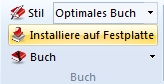
In the Analysis menu, the function "Install on hard disk" is now active. In the file selection dialog "Save as", you can now select the directory in which the book is to be saved.