With the position tree you can immediately see which continuations in the opening are particularly promising.
If you permanently enable the position tree display next to the notation window under View – Openings book (Ctrl+F12), this information is directly available.
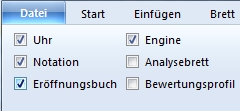
The question therefore arises how to set the analysis functions Blundercheck or Full Analysis so that the program does not analyse the moves already stored in the openings book all the way back to the first move? The solution is simple. Only if no book is loaded does the program analyse including the opening moves back to the first move. To prevent this, load the openings book before starting the analysis functions.
In the settings dialog for Full Analysis there is the entry Computation time. What exactly does it mean if you enter, for example, the value 60 here? Does the program take exactly 60 seconds analysis time per move, or is it an average value? You quickly notice that the program handles this value flexibly and that the engine does not rigidly abort the analysis of a move after 60 seconds and move on to the next. The analysis of a half-move is always completed. If the program additionally generates variations, the real computation time can be even longer. You should therefore consider the given value as an approximate guideline. The program compensates for the additional time consumption in Full Analysis with a qualitatively better analysis.
The evaluation profile – View - Evaluation profile – shows in a graphic representation the chess engine's position evaluations along the course of the game and the consumption of thinking time. In the evaluation profile you can immediately see where the game "tipped". The display is based on the saved position evaluations. If a game was played against the chess engine and the evaluation was saved, the profile can deliver the corresponding information. If, however, a game is loaded from a database and no corresponding evaluation is present, the evaluation profile lacks the data basis and the desired information cannot be displayed. In the settings dialog for the Blundercheck mode, an evaluation profile can be generated subsequently.
If you activate the option "Save evaluation", the evaluation is saved for each examined move. On the basis of these evaluations, you can subsequently create evaluation profiles for any game.